Using The new Hearing Services Program
e-Claim Platform
As
from 23 November 2019 the procedure for processing electronic claims will
change. Here is how to use the new e-Claim platform:
- In HearAid 7.0,
click on e-Claims|Prepare Batch;
a new CSV format batch file will be created and allocated the next batch
number in the sequence. So for example, if the last batch prepared was batch 495 then the new batch will be
called 496.csv
Once the batch file has been created HearAid calls up the computer's default web browser and connects to the HSO Portal where you log in using the existing portal log in procedure
- Once logged in to
the portal, expand the Claims
accordion and click the Batch
Upload button

which takes you to the File Upload page
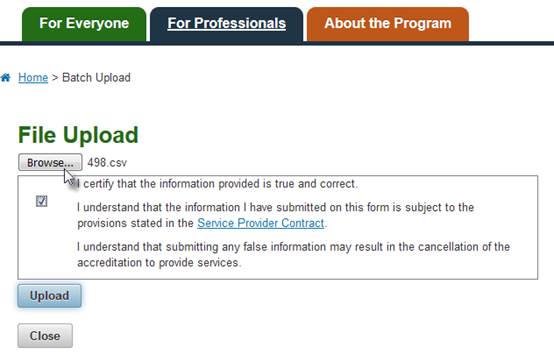
- Click the Browse button and navigate to the
..\HearSoft\HearAid 5.0\EClaims folder on your server computer (or
C:\HearSoft\HearAid 5.0\EClaims if you are using a stand-alone computer)
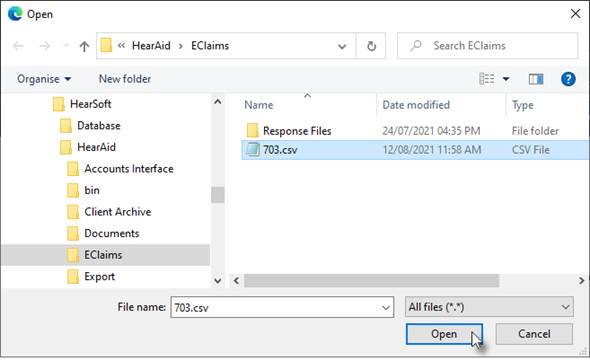
Normally you would select the batch file with the highest number but if you have missed uploading some batches you can choose any file to upload... there is no longer a requirement that batches be uploaded in strict sequential order and you can upload as many batches as you like in a single session
- If the batch
uploads successfully this message will display
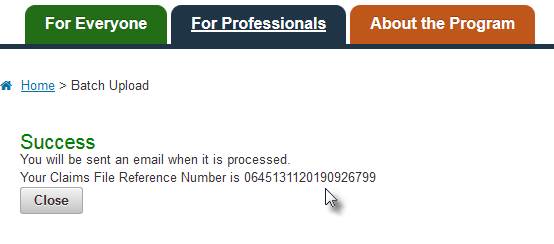
If, however, the upload fails then the Batch Upload screen remains, displaying an error message
- Batch response
files are usually available within 30 minutes, and you do not need to
wait for notification from HSP before downloading, but HSP will also
send an email to the Provider's registered email address to notify when
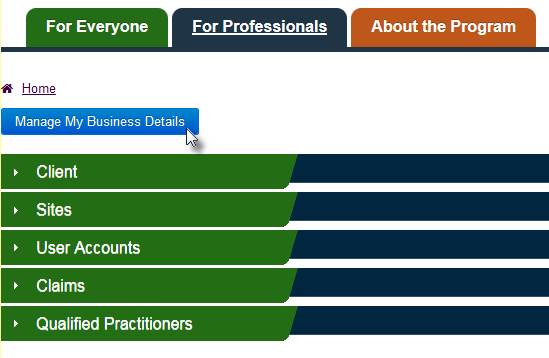
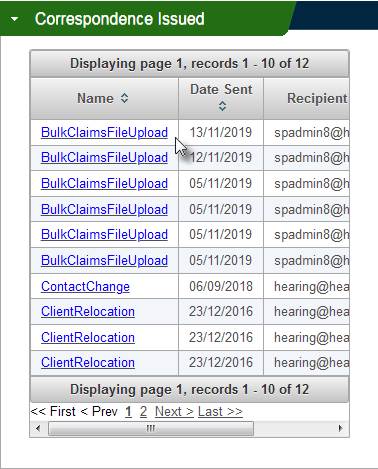
the batch has been processed. A copy of the email can be found in the Service Provider Details page,
accessed by clicking the Manage My
Business Details on the portal Home Page:
- When the batch
response is ready for download, return to the Claims accordion and click the Batch Download button, which opens the Batch Download page.
When generating batch files, HearAid stores the batch number in the batch Header row so the simplest way to retrieve a response file is to enter the Batch Number into the Header ID box. Alternatively, you can enter the Claims File Reference Number into the Load Number box

and click the Find button.
Click on the entry in the Load Number cell. Depending on your web browser and its settings for downloads, you should then be prompted to Save the response file:
Firefox

after clicking OK the Save To dialog box appears; Internet Explorer and Chrome should just open the dialog box

At this point it is recommended that you remove the "HearingServicesOnlineBatchUpload ResponseForLoad" part of the file name and just save the Load Reference number part as shown, or give the file the same name as the Batch File eg 563.csv

It is essential that you save the response file into the ..\HearSoft\HearAid\EClaims\Response Files folder!
Then click the Save button
- Once the response file
has been downloaded into the ..\HearSoft\HearAid
5.0\EClaims\Response Files folder you will be able to Reconcile it in HearAid in e-Claims|Reconcile

- Existing batch
files can be viewed in e-Claims
View Batch

- If you ever need
to recreate a batch file - if, say a batch file has accidentally been
deleted or moved before it was uploaded - there is a new function in the e-Claims|Batch Log window which
can be used to recreate it.
Select the batch record in the Batch Log, right-click on it and select the Recreate Batch File item on the pop-up menu
